Networking | Linux | FOSS | Note-Keeping |

Pages

Showing posts with label Emulation. Show all posts

Tuesday, April 9, 2019

Early access to new WebUi - GNS3 2.2.0 alpha 4 upgrade on Linux

GNS3 version 2.2.0 alpha 4 has been released, it gives you early access to the new web-ui with the upgrade of v2.2!

Major new features are the WebUi (read only for now), a new GNS3 VM based on Ubuntu 18.04 LTS, Hyper-V support for the GNS3 VM, new symbols (affinity theme), new template creation system, link status detection for Qemu VMs, custom adapters configuration, console support for clouds, new project import/export and much more! 


Please see What’s new in GNS3 version 2.2 for a detailed overview.

IMPORTANT NOTE to upgrade from 2.1.x and earlier versions of GNS3

Please do not upgrade if you are working on something important like a certification or something else. Understand there is no rollback possible once you open an older project in version 2.2

Backup all your projects, settings and snapshot the GNS3 VM. Version 2.2 is in alpha stage which means many things could be broken or not work as expected. Only advanced users who are comfortable with GNS3 should try this alpha release.

Linux installation

Ubuntu/Debian, install from our PPA:

sudo add-apt-repository ppa:gns3/unstable
sudo apt-get update
sudo apt-get install gns3-gui

For upgrading from the stable repository:

sudo add-apt-repository --remove ppa:gns3/ppa
sudo add-apt-repository ppa:gns3/unstable
sudo apt-get update
sudo apt-get upgrade

For upgrading from the unstable repository:

sudo apt-get update
sudo apt-get upgrade

For other Linux distributions, we recommend an installation via Pypi:

pip3 install gns3-gui==2.2.0a4
pip3 install gns3-server==2.2.0a4

This is the news I've been waiting for! For many of us this should make it easier to sneak in some lab time by just spooling up your server and then log into GNS3 via browser to lab! 


A final release is expected during the first half of 2019 and I am so excited! 

Source & Credits : Jeremy Grossmann@GNS3
Share:

Friday, March 29, 2019

Cisco Packet Tracer 7.2.1 Installation on Ubuntu 18.04 LTS Linux

Cisco Packet Tracer v7.2.1 was released in mid 2018, which doesn’t appear to need libicui18n.so.52 unlike CPT v7.1 (The bug was fixed in the latest release and v7.2.1 runs without any issue on Ubuntu 16.04). However, CPT v7.2.1 on Ubuntu 18.04 is unable to locate libpng12. Following solution (QT Libraries, libcu52 and libpng12 installation) fixed it for me:

Install Qt libraries:


sudo apt install libqt5webkit5 libqt5multimediawidgets5 libqt5svg5 libqt5script5 libqt5scripttools5 libqt5sql5


Install libcu52:


wget http://mirrors.kernel.org/ubuntu/pool/main/i/icu/libicu52_52.1-3ubuntu0.8_amd64.deb

sudo dpkg -i libicu52_52.1-3ubuntu0.8_amd64.deb

Install libpng12:


wget http://ftp.debian.org/debian/pool/main/libp/libpng/libpng12-0_1.2.50-2+deb8u3_amd64.deb

sudo dpkg -i libpng12-0_1.2.50-2+deb8u3_amd64.deb

Now, CPT should start correctly via 'packettracer' command in terminal.


Credits: 

Stack Exchange

Share:

Monday, June 18, 2018

SecureCRT "Error while loading shared libraries: libpng16.so.16" on Ubuntu 16.04

Today, I installed SecureCRT Version "8.3.3 (build 1646) - Official Release - May 3, 2018" on Ubuntu 16.04.4 LTS machine. After installation, SecureCRT won't launch and gave the following error in terminal.
$ SecureCRT
SecureCRT: error while loading shared libraries: libpng16.so.16: cannot open shared object file: No such file or directory
Tried various tweaks, and the following did the job.
Firstly, install required PNG Library "libpng16-16" package with the following command:
$ sudo apt install libpng16-16
Run the program, and if you come across `GLIBCXX_3.4.22' not found error than go further below to next step:
$ SecureCRT
SecureCRT: /usr/lib/x86_64-linux-gnu/libstdc++.so.6: version `GLIBCXX_3.4.22' not found (required by SecureCRT)
Now, Update GLIBCXX_3.4.22 library packages from this untrusted PPA by adding ppa:ubuntu-toolchain-r/test to your system's Software Sources.
$ sudo add-apt-repository ppa:ubuntu-toolchain-r/test
$ sudo apt update
$ sudo apt dist-upgrade -y
You can check if you have GLIBCXX_3.4.22 like this:
$ strings /usr/lib/x86_64-linux-gnu/libstdc++.so.6 | grep GLIBCXX_3.4.22
GLIBCXX_3.4.22  
Now, run SecureCRT and enjoy!

HTH,
Rana Tauqeer.
Share:

Wednesday, March 7, 2018

Unable to login via HTML5 console on EVE-NG

Issue:
Unable to login via HTML5 console on EVE-NG's Web GUI after upgrade to EVE-NG 2.0.3-86 or when in HTML5 console, disconnect button gets you into a guacamole login page and can’t get any sessions in HTML5.

Solution:

This is a typical corrupt Guacamole SQL database issue; whether happened randomly or even during/after eve upgrade process, there are two very simple proposed solutions for this problem:
  1. Logout/Login from/into eve to be able to open html console again.
    or
  2. Issue the following command on eve-ng vm:
    #cat /opt/unetlab/schema/guacamole-update.sql | mysql -u root --password=eve-ng guacdb
    and than login/logout from/into eve.
HTH,
Rana Tauqeer.
Share:

Setting SecureCRT as default telnet handler for EVE-NG devices on Firefox.

While doing Lab practice on EVE-NG's Web GUI on Firefox Web-browser, telnet (by double click or right-click console option) to a network device opens Ubuntu's default terminal (Gnome Terminal) via 'xdg-open' script from 'xdg-utils' by default. Console to multiple devices opens a new instance of Gnome Terminal for each telnet session, which for me is not handy and makes it too messy! 

I'm rather a SecureCRT fan, and have always preferred it over other available terminal emulators due to it's awesome features and handy tools. So, I was trying to find a way to open the EVE-NG's telnet:// or ssh:// links directly via SecureCRT. Manual telnet/SSH from SecureCRT to EVE-NG's devices works fine by default, but, this becomes hectic for full scale CCIE Labs having over 50 or more devices running.


With the help of VanDyke Technical Support, I was able to figure out a way to get Firefox on Ubuntu to prompt you for which application to open SSH/Telnet links with.


Following instructions can make it possible:

  • Open Firefox and type “about:config” in address bar.
  • Create a new Boolean preference (right click on an empty space), name it
    network.protocol-handler.expose.telnet” (without inverted commas) for telnet handler, and set the value “false”.
  • Create another new Boolean preference (right click on an empty space), name it
    network.protocol-handler.expose.ssh” (without inverted commas) for ssh handler, and set the value “false
  • Restart the browser.
This should be enough for Firefox to let us select an external application to open “telnet://” links. 
While testing I would suggest leaving the "Remember my choice for ..." option unchecked. When prompted you should be able to select SecureCRT, by default it is located at /usr/bin/SecureCRT.

PS:

I'm using latest SecureCRT 8.3.2 on Ubuntu 16.04.4 LTS (Xenial) and while attempting various suggested workarounds, messed up SecureCRT's Tab feature (it kept opening new sessions in new instances rather than in tabs).

There is a work around that you could try. It would force SecureCRT into Single Instance mode, though you would not be able to open two separate instances of SecureCRT.


To accomplish this:

  • Locate the config folder info in the General / Configuration Paths category of SecureCRT's Global Options
  • Close all instances of SecureCRT/FX
  • Navigate to your SecureCRT configuration folder
  • Locate and open the Global.ini file
  • Find the line containing "Single Instance"
  • Modify the line to D:"Single Instance"=00000001
  • Save the changes to Global.ini
Now that SecureCRT is in Single Instance mode any link selected should open in a new tab.

HTH,

Rana Tauqeer.

Share:

Thursday, August 24, 2017

How To Run Juniper Router JunOS Olive VM image(.OVA) in GNS3

How To Run Juniper Router JunOS Olive VM image (.OVA) in GNS3


First of all, download, install and run Oracle VM VirtualBox, and GNS3 on your PC.

Secondly, download the JunOS Olive VM image from the link below:

Download JunOS image file for GNS3

(Link searched from internet and pasted here for reference only)

After downloading the JunOS VM image, open the Oracle VM VirtualBox console. Click File and select Import Appliance to import VM (or just double click on the downloaded file and run it with Oracle VM VirtualBox to Import Appliance.)

Now, click the Browse button to locate the downloaded JunOS image file, select it, and then click Next

Accept the default resource values or adjust them as per requirement, and then click Import.
(I'm using default values that came with downloaded VM.


Once the VM is imported, select it, and click Start to power on.

Note:
In case, while importing the Virtual Machine in Oracle VM VirtualBox, you get the error "could not start the machine because following physical network interfaces were not found" than click Change Network Settings, select Microsoft KM-TEST Loopback Adapter from the list, and then click OK.
(If Microsoft Lopback Adapter is not already installed, than install it via the "Add Hardware Wizard" on windows and than select it in network settings)
If this error does not occur than, skip this step.


Now, on GNS3, click Edit, and select Preferences. On the Preferences window, select VirtualBox VMs in the left pane, and then select New.
Select JunOS Olive VM (Juniper router IOS image)and click Finish.


Now click Edit, change Symbol & Category to Router. Move on to the Network tab, and set the number of adapters as per your requirement (I selected 4 here)
Also, Select the Allow GNS3 to use any configured VirtualBox adapter check box and click OK. Now again press Apply & OK.


Now, in GNS3 console GUI, drag & drop the Junos router and start it.


Switch to the JunOS VirtualBox console or go to console from GNS3. At the login prompt, type root as username and press Enter. The Password is blank
At the next prompt, type cli and press Enter, and "Show Version" to verify the Junos version.


Enjoy.

Share:

How to run Juniper Router (JunOS) .img in GNS3

Installing Juniper Router IOS (Junos) .img via GNS3 Qemu on Local Computer or GNS3 VM:


Pre-requisites
  • GNS3 installed
  • VMWare or Oracle VM VirtualBox installed (If you want to install to VM)
  • Juniper Router IOS (Junos) .img file

Adding Junos in GNS3

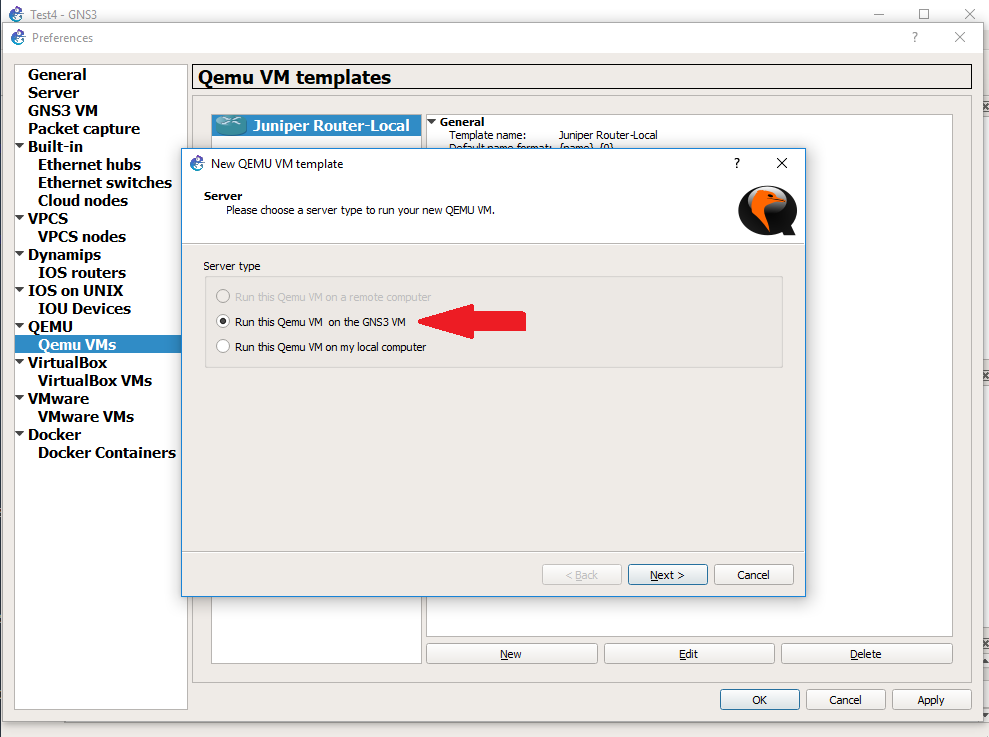
Open GNS3 and go to Edit > Preferences > QEMU > QEMU VMs

Select "Run this Qemu VM on the GNS3 VM" for running Junos on VM
or
select "Run this Qemu VM on local computer" for running Junos on local computer and press Next (I’m running it on VM here).


Name the Junos here and press Next


Select Qemu Binary and RAM here and press Next (I’m using auto-selected default Qemu binary values by GNS3 and 256MB of RAM)


Choose Consol Type here (I selected Telnet) and press Next


Now, choose basic disk image for the virtual machine, if you haven’t already chosen/uploaded it to VM than select New Image and give path to Junos.img file and it will start uploading .img file to VM. Give it some time to upload and press Finish. (I had it already uploaded to VM earlier while testing so, chose Existing Image and selected the .img file from drop down menu)
Click Apply and OK


To change the Junos Router Icon, press all devices icon from the left hand menu, select Junos router and right click on it. Click on Configure Template. Now change the Symbol from Browse option and select router icon from the list. Also, change the Category from drop down menu and select Routers.


Change Network Adapters to 4 (Maximum supported by QEMU) or according to your need and press OK.


Now, you are all set to test the settings.


Drag & Drop the Junos router to the main topology window, turn it on, and get console access. Give it some time to boot (At least 4-5 minutes)


After Successful boot, login with "root" and press enter & to enter into Junos CLI mode type "cli" and press enter. 


Enjoy!
Share:

Saturday, May 27, 2017

Setting up EVE-NG (Emulated Virtual Environment-Next Generation)

I have been using UNetLab for my Cisco certifications Lab practices since long & it has been very useful, thanks to UnetLab developers for that! The same team built a new, improved, efficient, more powerful, and flexible emulation platform called EVE-NG(Emulated Virtual Environment-Next Generation) earlier this year. Some fellows have been asking me about issues regarding installation, setup tips & tweaks, running IOL, Cisco IOS images, IOSv, QEMU and other virtual machines etc., so, I am writing the tips & tricks to workaround easily using EVE-NG version '2.0.3-60' updated on April 14, 2017.


Setting up EVE-NG:

  • Download & install VMware Workstation Here
  • Download ready to go OVA ver 2.0.3-59 Here or the direct Mega download Link Here
  • Import the downloaded OVA in VMware Workstation by running VMware Workstation and select File -> Open - >browse & select downloaded OVA file named 'EVE Community Edition.ova' and press Open.

  • A new window will popup, press import.

  • Wait till the import is complete.

  • Now, change the newly imported virtual machine settings.

  • Change Memory (RAM) according to your available system resources, (more, the better) I have changed it to 4GB's of RAM for this test VM.

  • Change processor settings according to your system resources, following are the settings for my laptop. I have selsected 4,1.
    The most important thing is to also select "Virtualize Intel VT-x/EPT or AMD-v/RVI" option. DO NOT FORGET TO SELECT THIS.

  • Change the Network settings to "NAT"and press OK.

  • Now press "Upgrade this virtual machine", if you are using newer than VMware Workstation 10 versions. The default OVA settings are for VMware 10. Press Next.


  • Select the VMware Workstation version from the drop down menu. I'm using VMware Workstation version 12, so select version 12 and press Next.


  • Select "Alter this virtual machine" and press Next

  • Press Finish.
  • After the virtual machine conversion is complete, press Close.
  • Now, the virtual machine is ready to be turned on. Press "Power on this virtual Machine".
     
  • Login with username "root" and password "eve"


  • Now, a new window will pop up, type the root password, press OK, and than retype and press OK.

  • Here you can assign a short name for the virtual machine, change it to your desire or leave it as default and press OK.

  • Change the domain name or leave it to default and press OK.

  • The default network settings are to use dhcp, it is recommended to use a static IP address for management, so use down arrow, press space bar key to select static, and press OK.

  • Type the management IP address here by looking at the virtual network adapter settings, and press OK

  • Type Subnet Mask and press OK.

  • Type the default Gateway address, do not use the first IP address of the range as it is used by VMware, so type the second IP address of the range.

  • Type the Primary DNS Server address, and press OK.

  • Type Secondary DNS Server address(I am using 8.8.8.8), and press OK.

  • Type NTP Server address or leave empty if you don't wish clock sync, and press OK.

  • Choose the connection type, if you're not using any proxy than just press OK.

  • After this, the VM will reboot itself and you'll be prompted with the login, password prompt. Type username & password.
  • It is important to check internet connectivity by pinging any internet address, so that we may be able to download EVE-NG future updates and other packages later.


Now EVE-NG is ready to be accessed, pointing the browser to the management address (previously configured) will open a username password prompt. The web default user is "admin" with the password "eve". Login with the credentials and witness the GUI, different menus and features. Just go through the menus and you will get familiar with all available features.


HTH.
Rana Tauqeer.

Share:

Sitemap

Contact Form

Name

Email *

Message *

Total Pageviews

Search This Blog